Image to 3D Model AI: Where to Find Commercial Blender Models
This image to 3d model ai guide compares licenses at top Blender model sources and shows how to import each format without losing materials or structure.
Readers looking for image to 3d model ai workflows often need usable Blender assets, not just a download. This guide explains which licenses allow commercial work and how to import each model format without breaking materials or scene structure.
A model that costs nothing to download may still come with obligations when it enters a game, client project, or product render. I compare the licensing choices behind common Blender sources, then show how to import each format without losing materials or scene structure.
The short version
- Choose CC0 assets when you need commercial use, editing rights, and no required attribution.
- CC BY and CC BY-SA can work commercially, but both require credit; CC BY-SA also affects how modified versions are shared.
- CC BY-NC rules out commercial work, while CC BY-ND permits commercial use but restricts modifications.
- Import according to the file type: append
.blendcontent, use glTF for GLB, and keep OBJ support files with the mesh.
Commercial use starts with the license
The download price tells me almost nothing about what I can do with an asset. A free file may still require attribution, prohibit commercial use, or limit edits.
Before adding a model to paid work, I look for four permissions:
- Commercial use — Can it appear in a paid game, client render, product image, or physical item for sale?
- Credit — Must the creator be named in the game, documentation, listing, or credits?
- Modification — Am I allowed to resize, recolor, cut, retopologize, or combine the asset?
- Redistribution — Can the finished project include the asset, and are there limits on sharing the source file?
To make the search more practical, the free Blender models guide maps out eight source types, from Poly Haven and BlenderKit to Sketchfab, Blend Swap, NASA 3D Resources, human base meshes, Fab, and picture-based generation. It also matches common download formats to the Blender operation that imports them.
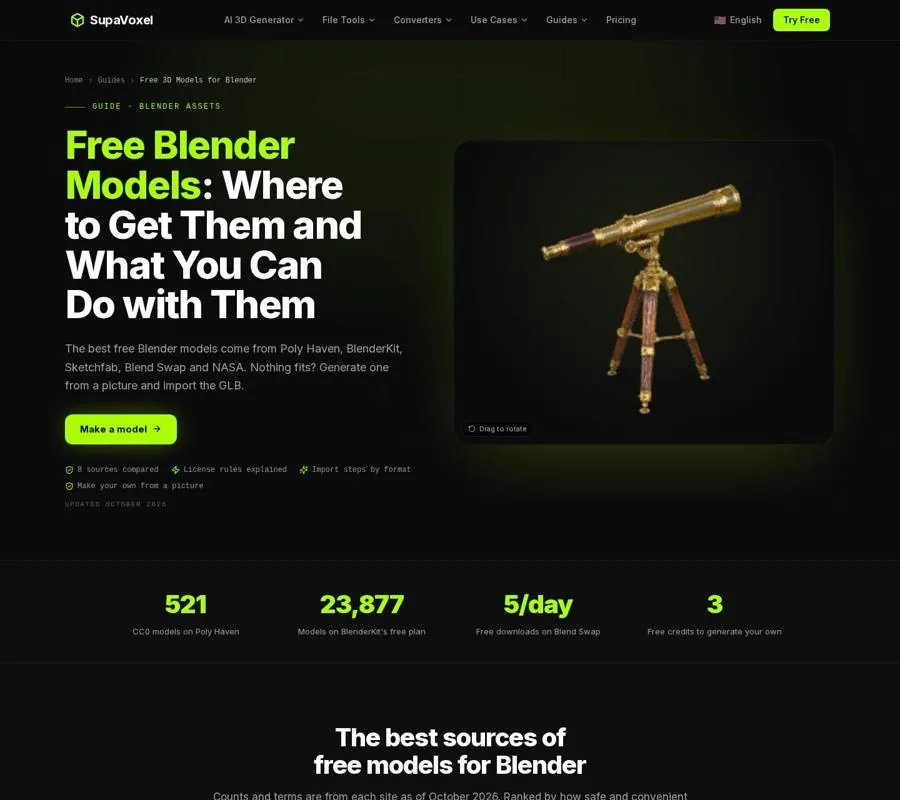
A source-and-license overview sits alongside format-specific Blender import instructions.
How the main license types differ
These are the labels I check before treating a model as production-ready.
- CC0 — You can use and alter the asset commercially without giving credit. This is usually the least complicated option. Poly Haven lists 521 CC0 models as of October 2026.
- CC BY — Commercial use and editing are permitted, but attribution is part of the deal. Save the creator name and any wording requested for the credit.
- CC BY-SA — You may use and change the work commercially with attribution, but your adapted version must retain the same license. That can matter when an asset becomes part of a distributed package.
- CC BY-NC — Changes and attribution are allowed, but commercial use is excluded. Do not use this license for a paid game, client deliverable, or product you sell.
- CC BY-ND — Commercial use is possible with credit, but you cannot publish an altered version. It is a poor fit for assets that need cutting, retopology, or substantial integration work.
- Site-specific license — Read the platform’s own terms. BlenderKit, Fab, and Blend Swap may impose conditions that do not fit neatly into a Creative Commons label.
The permission belongs to the individual asset, not automatically to every file hosted by a website. Two models on the same platform can have different rules, so I open the asset page instead of relying on a “free” search filter.
Which source should you choose?
I pick a library based on the rights and format I need.
Poly Haven is my first choice when the licensing decision needs to stay simple. Its assets use CC0, which removes the usual credit requirement and permits modification. It is useful for environment pieces, materials, and other production content.
BlenderKit is convenient for browsing from inside Blender and placing an asset directly into a scene. Its free plan lists 23,877 models as of October 2026, but the terms are specific to the service and asset. I read the permission details shown for the item rather than assuming the entire library has one license.
Sketchfab offers a wide mix of subjects and Creative Commons choices. That variety is helpful, but it makes asset-level checking essential. A model may require attribution, block commercial use, or limit edits.
Blend Swap is a useful place to look for native Blender files. Downloads may use Creative Commons terms or the site’s General Asset License, so I check the individual listing.
NASA 3D Resources is a natural source for space-related subjects. I still verify the terms attached to the particular asset before using it commercially.
Blender Human Base Meshes can provide a starting point for human characters, but a base mesh still needs its own license check.
Fab has marketplace-specific terms and conditions. Review them before modifying the asset or including it in a distributed game.
Make a license record before importing
I keep a small record for every asset that enters commercial work:
- Asset name and creator
- Source page and download date
- License name
- Required attribution text
- Notes on editing and redistribution
- A saved copy or screenshot of the terms
This is especially useful when a scene contains many downloaded objects. If a client or publisher asks where a prop came from, the record is faster and more reliable than retracing browser searches.
The extension does not determine the legal rights. A GLB, OBJ, FBX, or .blend file can carry permissive or restrictive terms. Format tells Blender how to read the asset; it does not grant permission to use it.
Import the file using Blender’s format-specific workflow
Once the license is clear, I use the importer that matches the download.
-
For a
.blendfile, use Append.
Do not open the downloaded project over the scene you are building. Choose File > Append, browse into the file, open Object or Collection, and select the item you need. This keeps the working scene intact, and the appended object brings along its materials and modifiers. -
For GLB or glTF, use the glTF importer.
Choose File > Import > glTF 2.0 (.glb/.gltf). Blender creates Principled BSDF material nodes from the imported materials. Because glTF uses meters, the initial scale is generally sensible. Switch to Material Preview to check textures. -
For FBX, use the FBX importer.
Choose File > Import > FBX. This format is common for game assets and rigged characters. If the result is dramatically too large or too small, correct its scale and apply the transform with Ctrl+A. -
For OBJ, keep its companion files together.
Choose File > Import > Wavefront (.obj). The.mtlfile and image textures should remain beside the OBJ so Blender can find the materials. OBJ does not include a rig or animation, making it more suitable for static geometry. -
For BlenderKit, use its in-app browser.
Add the BlenderKit extension, log in, locate its asset search in the 3D Viewport, and pull the chosen result into the scene. The placement is quick, but the license review still belongs to the artist.
After import, I rename the object or collection with the creator and license information. That makes later auditing easier without altering the downloaded asset.
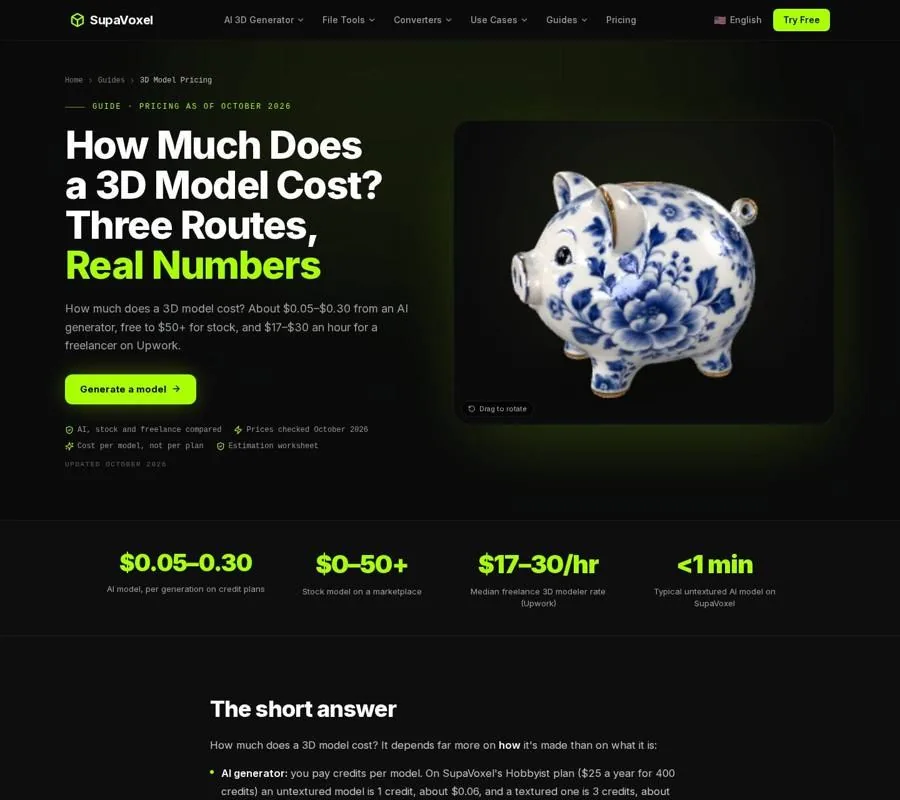
The pricing guide sets AI generation beside stock marketplaces and freelance modeling.
When a library model does not fit
Free libraries cover common props, furniture, rocks, vehicles, and environment pieces well. They are less useful when I need a particular mascot, product, creature, or object from concept art.
The guide on how much does a 3d model cost compares AI generation, stock purchases, freelance work, and the value of making the asset yourself. The right choice depends on more than price: check the required accuracy, topology, textures, destination, and license.
SupaVoxel can generate a model from one picture. New accounts get 3 free credits, while the commercial license for generated models is part of paid plans from $25 a year. I would still treat the result as a starting mesh and inspect it before putting it into a finished project.
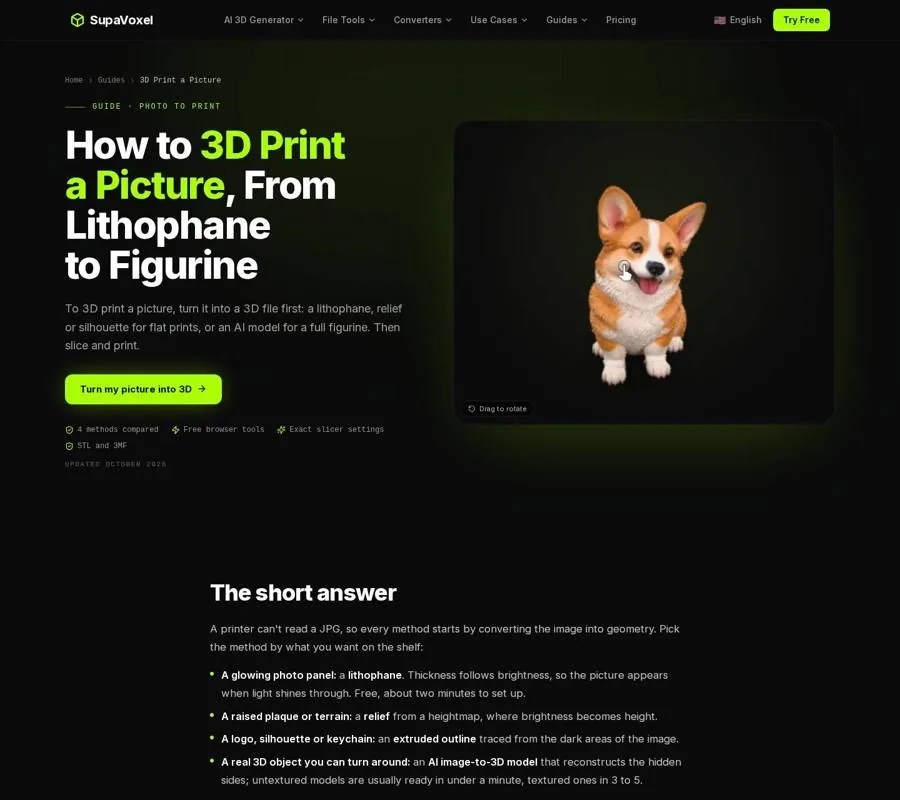
The guide separates flat photo treatments from full models reconstructed from a picture.
Commercial use for printable assets
A model suitable for a render is not necessarily ready for a printer. Visual assets can contain gaps, intersecting shells, or walls too thin to survive fabrication. After exporting, open the file in an STL viewer; if the geometry has defects, send it through a repair utility before slicing.
The license also follows the physical result. A CC BY-NC file may be fine for a personal print but unsuitable for an item sold at a market. CC BY-ND may permit a commercial print while preventing changes to the file. CC0 is generally the simplest starting point for a product, but I still keep the source record.
If no library asset fits, 3d print a picture explains when to choose a lithophane, relief, silhouette, or full AI figurine. The correct method depends on whether the finished object should be a flat image, raised plaque, cut-out shape, or form visible from every side.
FAQ
Is CC0 always safe for commercial Blender projects?
CC0 is the clearest option in this list: it permits commercial use and modification without required credit. I still save the source and license information for the project record.
Can I use a CC BY model in a paid game?
Yes, commercial use is allowed, but attribution is required. Keep the creator’s name and the requested credit wording, along with any other asset-specific conditions.
Which Blender file format is best for a downloaded model?
Use .blend when you want Blender-native objects, materials, and modifiers. GLB or glTF is useful for portable scenes with materials, FBX is common for game and rigged content, and OBJ works well for a static mesh when its material files stay beside it.
Want to try it yourself?
Try Supavoxel →